![Notify_Refresh_MasterLogo_CMYK[1]](https://helpcentre.notifytechnology.com/hs-fs/hubfs/Notify_Refresh_MasterLogo_CMYK%5B1%5D.png?width=291&height=117&name=Notify_Refresh_MasterLogo_CMYK%5B1%5D.png)
Please note: If your template editor instead walks you through a fixed series of steps with a built-in PPE section, you are on the original (Legacy) experience and should follow the legacy guide instead.
https://helpcentre.notifytechnology.com/knowledge/how-do-i-build-a-risk-assessment-template
Before you start
You need permission to manage Risk Assessment templates to create or edit templates. If you can open the list but cannot see the create button, ask your administrator to check your access.
How do I create a new template?
- In the left-hand menu, select Risk Templates. The page is titled Risk Assessment Templates.
- Click Create New Risk Assessment Template. The Template Builder opens.
- In the Form settings card, enter a Form template name (required) and, if you wish, a Form template description. You can also pick a Category to group the template.

How do I set the assessment name and description?
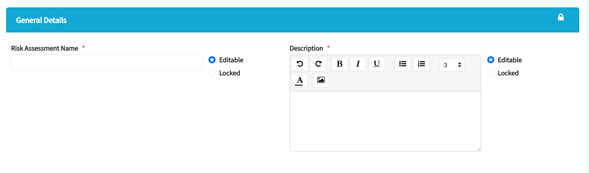
The General Details panel holds the name and description that every risk assessment created from this template will start with.
- Open the General Details panel.
- Enter the Risk Assessment Name (required) and the Description (required).
- Next to each, choose Editable or Locked. Editable lets the risk assessor change the text in their assessment. Locked means they cannot change it at all
What template settings can I choose?
These live in the Preferences area of the builder.
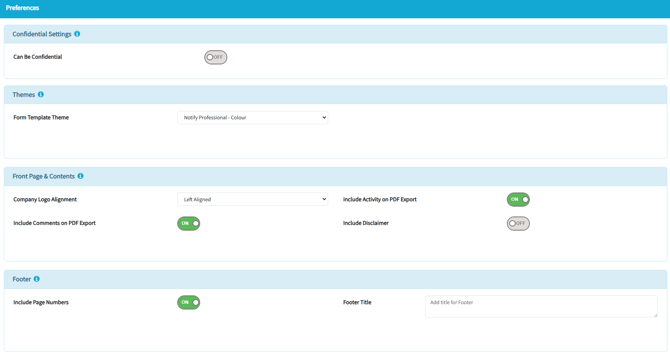
- Confidential Settings. Turn on Can Be Confidential to allow assessments created from this template to be marked as confidential. You can also turn on Auto Flag as Confidential so every assessment from this template is confidential automatically, and name Confidential Delegates who can always see confidential assessments. Note that only templates in this experience support confidential assessments; risk assessments generated with Legacy templates cannot be marked as confidential.
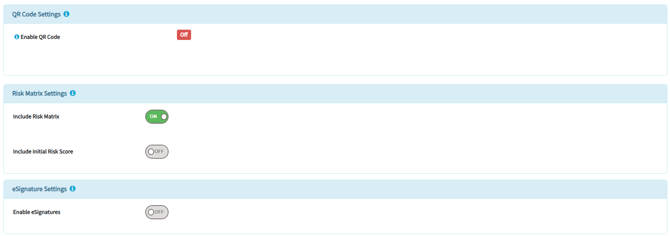
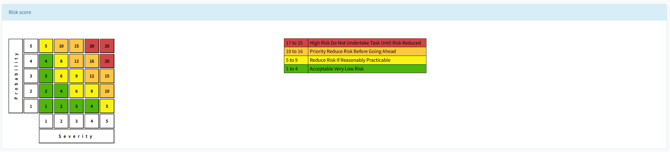
- Risk Matrix Settings. Turn on Include Risk Matrix to score hazards with your risk matrix. With the matrix on, you can also turn on Include Initial Risk Score to capture the risk level before controls are applied.
- eSignature Settings. Turn on Enable eSignatures to require the person completing the assessment to sign it. You can change the Section title (preset suggestion "Completed By") and the Supporting Text. Signature fields record a date and time stamp and the signer's location by default.
- Approval Settings (shown once eSignatures are on). Turn on Requires Approval to require sign-off before an assessment is published. You can set the Section title (pre-set suggestion "Approved By"), the Supporting Text, the Approval Window in days, and whether Reviews Require Approval.
- PDF export options. Under Front Page & Contents you can include activity and comments on the PDF export and add a disclaimer. Under Footer you can include page numbers and a footer title. QR Code Settings lets you offer the template through a QR code.
How do I add sections?
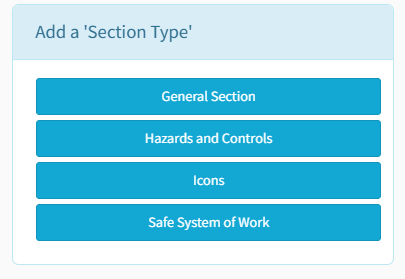
Your template is assembled from sections. Add the ones you need from the Add a 'Section Type' panel; every section is optional.
- Click a section type to add it. The choices are General Section, Hazards and Controls, Icons, and Safe System of Work. You can add as many General Sections and Icons sections as you need; Hazards and Controls and Safe System of Work can each be added once per template.
- Give the section a Section title (General Section and Icons only; the Hazards and Controls and Safe System of Work sections keep their names) and, if you wish, a Section description.
- Choose the section options you need. Tick Page break before this section (PDF export) to start the section on a fresh page in the PDF. Tick "This section can be Not applicable?" if assessors should be able to skip the whole section.
What goes in a General Section?
A General Section is a free-form section you fill with form fields. With the section selected, add fields from the Add a 'Form Field' panel. The available fields include Text Box, Multi-line Text, Rich Text Editor, List, Date/Time Picker, Linear Scale, Action Creator, Yes/No/NA, Safe/At-Risk, Picture, Global List, Location, Red/Amber/Green, Embedded Picture, Confirmation, Guidance Text, eSignature, and Icons.
For Text Box, Multi-line Text, and Rich Text Editor fields you can tick Include default content to pre-fill the field, then choose Editable (the assessor can change it) or Locked (they cannot).
How does the Hazards and Controls section work?
- Add the Hazards and Controls section.
- Click Add Hazard. The hazard screen opens (your draft is saved automatically first).
- Complete the hazard. Fill in What is the Hazard?, choose Who might be Harmed? and How might they be Harmed?, and add control measures under Controls using Add Control. If Include Initial Risk Score is on, score the hazard on the risk matrix before controls.
- Choose Editable or Locked for the hazard. Locked is only available once the hazard has at least one control.
- Save the hazard to return to the template. Repeat for each hazard. You can edit, delete, and drag hazards to reorder them in the table.
A template that includes this section must contain at least one hazard before it can be published. The product shows "At least one hazard must be added before publishing this Risk Assessment" if you try to publish without one.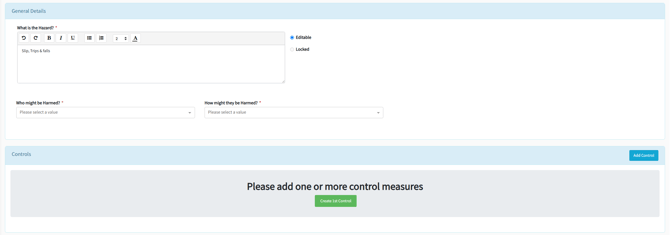
How does the Icons section work?
- Add the Icons section.
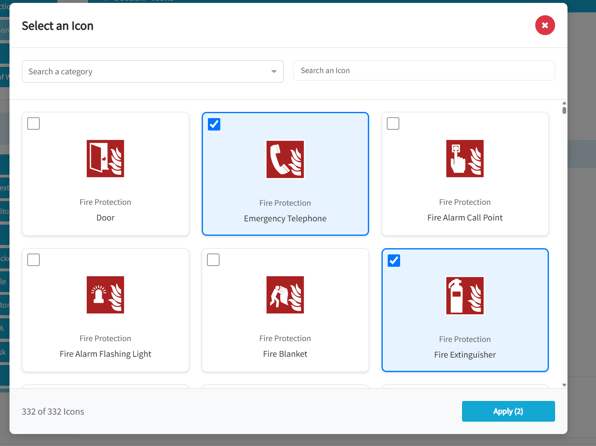
- Click Add Icon. The Select an Icon window opens.
- Find icons using the category dropdown (Search a category) or the Search an Icon box, tick the ones you want, and click Apply.
- For each icon, you can edit its label and tick Default Selection so it is pre-selected on every assessment.
- Choose Editable or Append Only for the section. Editable lets assessors change the icon selection freely; Append Only lets them add icons but not remove your default selections.
How does the Safe System of Work section work?
Add the Safe System of Work section wherever you want it to appear; you can drag it into position like any other section. It contains a rich text field titled "Description of Work". Tick Include default content to pre-populate the safe system of work for your assessors, then choose Editable or Locked to control whether they can change it.
How do I reorder or remove sections?
- To reorder, drag a section up or down using the move handle in its header. The eSignature section stays at the bottom and cannot be moved.
- To remove, click the bin icon in the section header and confirm with Yes. Deleting a section cannot be undone.
How does the eSignature section appear?
You do not add it from the section panel. When you turn on Enable eSignatures in eSignature Settings, the section is added to the template automatically. It is pinned in place and shows a lock; to change it, edit the eSignature Settings instead.
How does saving work?
Your work is saved as a draft automatically a few minutes after each change, and a Saved at notice with the time appears once it has saved. You can also click Save at any time.
How do I preview the template?
Click Preview to see the template as your assessors will. Click Edit mode to return to building.
How do I publish the template?
- Click Publish.
- When prompted ("About To Publish... which will make it available to your colleagues."), click Yes - Publish the Template. If you are not ready, click No - I'll Publish it Later and the template stays in draft.
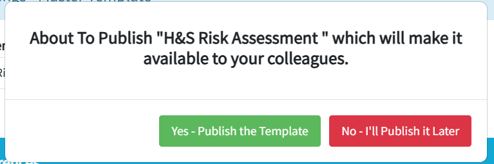
If anything required is missing, the product highlights the errors and the template is not published; fix them and try again.
What happens next?
- You are returned to the Risk Assessment Templates list, and the template shows the Published status.
- Colleagues with the right permissions can now create risk assessments from the template. Each assessment starts with your General Details, sections, hazards, icons, and any default content, with your Editable, Locked, and Append Only choices applied.
- The published template opens read-only. To change it, open it and click Create New Version; see the editing guide.
Troubleshooting
- I cannot see Risk Templates in the menu: your account does not have permission to view Risk Assessment templates. Ask your administrator.
- I can see the list but not the create button: you have view access only. Managing templates needs its own permission; ask your administrator.
- The create button opens a different, step-by-step editor: your account is on the original (Legacy) template experience. Follow the legacy guide, or contact support about the section-based builder.
- The Hazards and Controls (or Safe System of Work) button is greyed out: the template already contains that section. Each can only be added once.
- I cannot add a form field: fields live inside sections. Add a section first, then add fields to it.
- Publishing fails with a hazard message: your template includes the Hazards and Controls section but has no hazards. Add at least one hazard with a control, or remove the section.
- I cannot choose Locked for a hazard: add at least one control to the hazard first; hazards without controls cannot be locked.
- My assessors cannot mark their assessments as confidential: turn on Can Be Confidential in the template's Confidential Settings. Also note that assessments created from Legacy templates can never be confidential.