![Notify_Refresh_MasterLogo_CMYK[1]](https://helpcentre.notifytechnology.com/hs-fs/hubfs/Notify_Refresh_MasterLogo_CMYK%5B1%5D.png?width=291&height=117&name=Notify_Refresh_MasterLogo_CMYK%5B1%5D.png)
Note: Only users with the System Administrator permission can generate and manage QR codes.
1. Log in to your Notify account
You can log in to your Notify account here.
2. Go to Company Settings
From the main menu, open Company Settings.
3. Go to Incident Settings
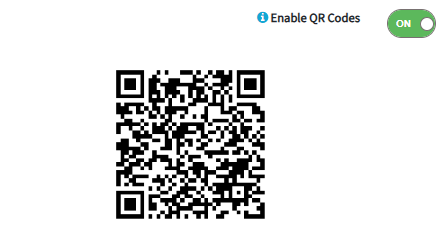
In Incident Settings toggle on Enable QR Codes, once enabled you will see a QR code appear below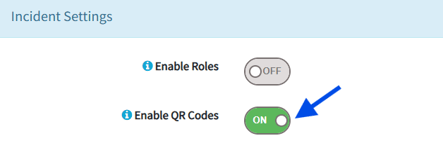
4. Scroll down and hit Save
6. Once saved you, navigate back to the Incident Settings
You will now be able to Download Image, Download Poster or copy the URL for your QR code. The QR code can be printed and placed where appropriate around your site for users to scan.
Once active, anyone with a smartphone can scan the QR code and go straight to the report an incident list. This helps your team capture issues quickly and accurately, improving real time reporting across your site.