![Notify_Refresh_MasterLogo_CMYK[1]](https://helpcentre.notifytechnology.com/hs-fs/hubfs/Notify_Refresh_MasterLogo_CMYK%5B1%5D.png?width=291&height=117&name=Notify_Refresh_MasterLogo_CMYK%5B1%5D.png)
Note: Only users with the System Administrator permission can generate and manage QR codes.
1. Log in to your Notify account
You can log in to your Notify account here.
2. Go to Company Settings
From the main menu, open Company Settings.
3. Go to Incident Settings
In Incident Settings toggle on Enable QR Codes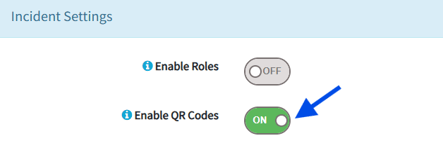
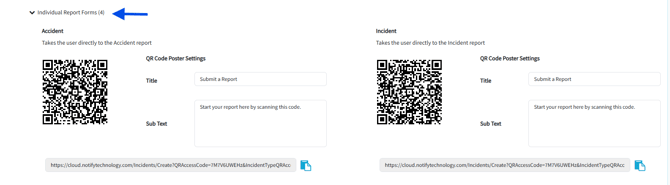
4. Click Individual Report Forms
Once selected, you will see individual QR codes for each of your incident types. You can also amend the Title and Sub Text if required.
5. Scroll down and hit Save
6. Once saved you, navigate back to the Incident Settings
You will now be able to Download Image, Download Poster or copy the URL for your individual report form QR code. The QR code can be printed and placed where appropriate around your site for users to scan. 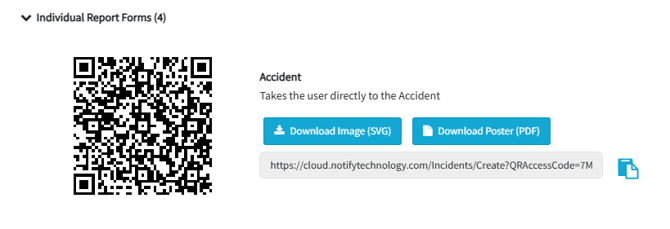
Once active, anyone with a smartphone can scan the QR code and go straight to the selected report form. This helps your team capture issues quickly and accurately, improving real time reporting across your site.
What happens next?
- Anyone with a smartphone can scan a code with their camera. The company-wide code opens the Report An Event Menu; an incident type code opens that incident type's report form directly.
- Reports submitted this way arrive in Notify exactly like any other incident report and follow your normal incident workflow and notifications.
- New incident types added later get their own QR code in the Individual Report Forms list; download and issue the new poster when you add a type.
Important: switching Enable QR Codes off stops every previously issued QR code from working. If you switch the feature back on, new codes are generated and you must download and reissue all your posters.
Troubleshooting
- I can't see My Company Settings under the settings cog: your account does not have the Company Settings Administrator permission group. Ask your System Administrator to add it.
- I can't find the Enable QR Codes toggle: the toggle is only on the edit screen. Open My Company Settings and click Edit first, then scroll to the Incident Settings section.
- Our printed QR posters have stopped working: QR codes were switched off (or off and on again) in My Company Settings, which invalidates previously issued codes. Download the current posters from the Incident Settings section and replace the old ones.
- The QR code opens a menu instead of the right report form: the poster was made from the company-wide Report An Event Menu code. Use the code listed under Individual Report Forms for that incident type instead.
- An incident type is missing from Individual Report Forms: check the incident type is active for your company. If it was added recently, reopen My Company Settings, click Edit and check the Individual Report Forms list again.