![Notify_Refresh_MasterLogo_CMYK[1]](https://helpcentre.notifytechnology.com/hs-fs/hubfs/Notify_Refresh_MasterLogo_CMYK%5B1%5D.png?width=291&height=117&name=Notify_Refresh_MasterLogo_CMYK%5B1%5D.png)
When a Risk Assessment reaches its next review date, or you simply want to keep it current, you can put it into review, make changes, and publish the updated version.
Before you start:
- The Risk Assessment must be Published. The Review button does not appear on drafts or archived assessments.
- You must be the person in the assessment's Assigned To field, and your account needs the relevant Risk Assessment permissions. If you cannot see the Review button, check both of these with your Notify administrator.
Steps
- Log in to Notify and select Risk Assessments.
- Open the Risk Assessment you want to review.
- Click Review.

- A confirmation window asks "You are about to review risk assessment", followed by the title, and "Are you sure you wish to continue?". Click Yes. The status changes to Reviewing.
- Click Edit to unlock the assessment.
- Make the updates you need. For example, you might update the Date Completed and Next Review Date, add or remove hazards and controls, add Collaborators, or update the fields in the template's sections. Content the template has locked (shown with a padlock) cannot be changed.
- Finish the review. Choose one: - Option A: republish now. Click Publish, then click Yes in the confirmation window. - Option B: keep your changes and republish later. Click Save Draft. Your changes are saved and the assessment stays in review until you publish it.
- If the template requires approval for reviews, clicking Yes does not republish immediately. A window tells you the Risk Assessment requires approval and names the person it will be sent to. Click Continue. The status changes to Pending Approval, the Assigned To field changes to the approver, and the assessment is locked until the approver deals with it. Some templates only require approval the first time an assessment is published, so a review may republish straight away even though the original publish needed approval.
Approving a Risk Assessment
This part is for the approver: the person shown in Assigned To while the assessment is Pending Approval. If the template sets an approval deadline, an Approval Deadline date appears on the assessment, with a warning when the deadline is within seven days or has passed.
The approver has three options:
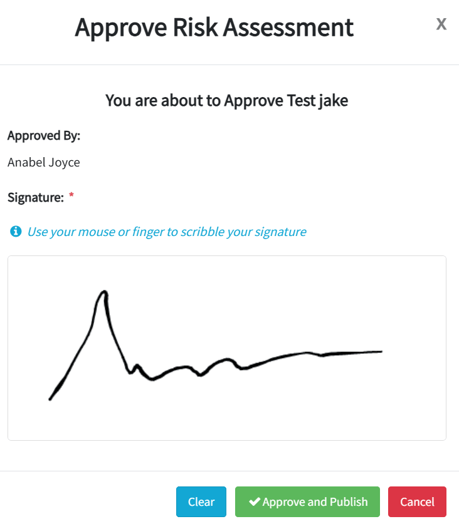
- Approve it. Click Approve. The Approve Risk Assessment window opens with the message "You are about to Approve" followed by the title. Draw your signature in the Signature box with your mouse or finger (use Clear to start again), then click Approve and Publish. The assessment is published, and the record shows an Approved By section with your name, signature, and the date and time it was captured. A signature is mandatory: without one you will see "Signature Required to Approve".
- Send it back for changes. Click Suggest Changes. In the Suggested Changes window, type your comment and click Save. The assessment returns to Draft with your comment recorded, so it can be amended and sent for approval again. An empty comment is not accepted.
- Pass it to another approver. If the approval needs to move (for example, the approver is away), click Assign. In the Reassign Approver window, the Current Approver is shown; search under New Approver, pick the person, and click Reassign. Reassigning requires permission to edit the relevant Risk Assessments; without it you will see "You do not have permission to reassign approvers".
📷 [SCREENSHOT TO ADD] The Approve Risk Assessment window showing the signature box and the Approve and Publish button.
🔍 [VERIFY BEFORE PUBLISHING] Confirm who the assessment is assigned to (and who is notified) after Suggest Changes returns it to Draft, then state it explicitly in the Suggest Changes bullet.
Only the designated approver can approve: anyone else who tries sees "Only the designated approver can approve this Risk Assessment".
What happens next
- A republished assessment shows as Published again, with the updated content and the new Next Review Date driving the next review cycle.
- An assessment sent for approval stays Pending Approval, locked, until the approver publishes it or returns it to Draft with suggested changes.
- Published assessments can be exported to PDF at any time.
Troubleshooting
- No Review button: the assessment is not Published, you are not the person in Assigned To, or your account lacks the relevant Risk Assessment permissions.
- You cannot edit during the review: click Edit first. If there is no Edit button, the assessment may be Pending Approval (locked) or you may not have edit rights. Individual items showing a padlock are locked by the template and cannot be changed by anyone.
- A warning says the template requires approval but your location has no approver: you cannot republish until your administrator sets a Default Approver For Risk Assessments on that location in the organisation structure. Contact your local Notify administrator.
- The Approve button is missing: only the assigned approver sees it. If the approver is unavailable, someone with edit rights can use Assign to reassign the approval.
- Approve and Publish does not work and shows "Signature Required to Approve": draw your signature in the box before clicking Approve and Publish.
- The assessment went back to Draft after you sent it for approval: the approver used Suggest Changes. Read their comment on the record, make the updates, and publish it again to restart the approval.