![Notify_Refresh_MasterLogo_CMYK[1]](https://helpcentre.notifytechnology.com/hs-fs/hubfs/Notify_Refresh_MasterLogo_CMYK%5B1%5D.png?width=291&height=117&name=Notify_Refresh_MasterLogo_CMYK%5B1%5D.png)
You can unlock your account yourself from the login screen by following the steps below. You do not need to reset your password to unlock your account.
If you are an admin user and need to unlock someone else's account, read this article here
How do I unlock my own account?
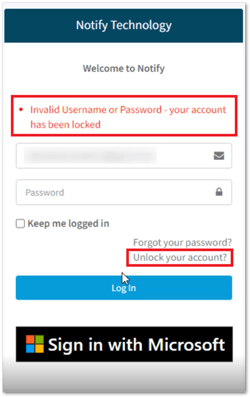
1) On the login screen, select Unlock your account? You will find this link below the password field, next to Forgot your password.
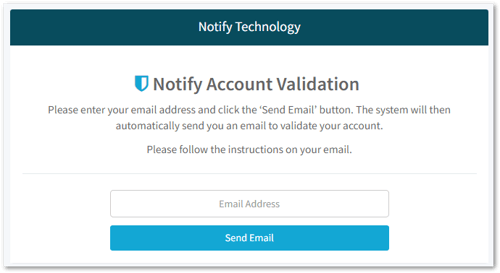
2) On the Notify Account Validation screen, enter your email address and select Send Email. Your email address is your Notify username.
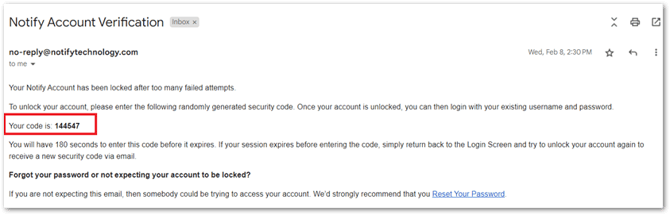
3) Check your email inbox. You will receive an email called Notify Account Verification containing a 6 digit security code. If you cannot see it, check your junk or spam folder.
4) Enter the 6 digit code on screen and select Continue. The code is valid for 15 minutes. If your code expires, select Resend code and a new code will be emailed to you.

5) You will see the message "You've successfully validated and unlocked your account." Select Return to Login and log in with your existing username and password.
What happens next?
As soon as you enter a valid code, your account is unlocked straight away and your failed login attempts are reset. Your password has not changed, so you can log in with your existing username and password.
If you cannot remember your password, select Forgot your password on the login screen to reset it.
Troubleshooting
I did not receive the code email: Check your junk or spam folder for an email called Notify Account Verification. Make sure the email address you entered is the one you use as your Notify username, then select Resend code to send a new code.
I see "ERROR: It seems your code is not valid, please try again": Check that you entered all 6 digits exactly as they appear in the most recent email. If the code has expired, select Resend code and use the new code.
I see "Session Has Expired.": Select Retry Login to return to the login screen, then start the unlock process again from the Unlock your account? link. A new code will be emailed to you.
I ran out of time to enter the code: The code is valid for 15 minutes. Select Resend code to receive a new one, or return to the login screen and start again.
I cannot access my email inbox: Ask an admin user at your organisation to unlock your account. Admin users with the Users Administrator permission group can unlock an account from the user's record in the Users area using the Unlock Account button.
I was not expecting my account to be locked: Somebody could be trying to access your account. We strongly recommend that you reset your password using the Forgot your password link on the login screen.
I am still locked out after following these steps: Raise a ticket with our support team through the Customer Portal and we will unlock the account for you.