![Notify_Refresh_MasterLogo_CMYK[1]](https://helpcentre.notifytechnology.com/hs-fs/hubfs/Notify_Refresh_MasterLogo_CMYK%5B1%5D.png?width=291&height=117&name=Notify_Refresh_MasterLogo_CMYK%5B1%5D.png)
This article provides a step-by-step guide on how to delete an audit that has been created in Notify. An audit can be deleted whatever its status, whether it is still a draft, in progress or complete.
Permissions: You must be in either the Company Audit Manager or the Department Audit Manager permission group to delete an audit:
- Company Audit Manager can delete any audit in the company.
- Department Audit Manager can delete audits that belong to their department(s).
To delete an audit that is flagged as confidential, you must also be in the Confidential Company Audits Manager group. If your organisation uses custom permission groups, the names may differ; your Notify administrator can confirm which groups you are in.
Important: This will permanently delete the audit. It cannot be restored from within Notify, so treat deletion as final.
Steps to delete an Audit
1. Select Audits in the left navigation menu
2. Locate the audit you wish to delete
You can use the filters at the top of the Audits page to narrow down the list.
3. Click the three horizontal dots at the end of the audit's row, on the right side

4. Select Delete Audit: From the options that appear, click on "Delete audit."
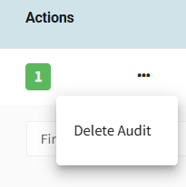
5. Confirm Deletion: A pop-up will appear asking for confirmation. Click "Yes" to confirm the deletion.
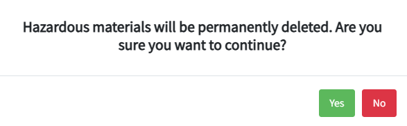
The pop-up reads "[audit name] will be permanently deleted. Are you sure you want to continue?" Click Yes to delete the audit, or No to keep it.
What happens next
- A green confirmation message appears: "The Audit has been deleted".
- The audits list refreshes and the audit is gone. It is removed for all users, not just you, and it no longer appears in audit lists, linked records or exports.
- Any links between the audit and other records (incidents, risk assessments, method statements) are removed. The linked records themselves are not deleted.
- Actions that were raised from the audit are not deleted. They remain in the Action Tracker, although they will no longer show a link back to the deleted audit.
- The audit cannot be restored from within Notify.
I can't see the Delete Audit option in the menu: You may not be in a permission group that allows deleting audits. You need Company Audit Manager (delete any audit in your company) or Department Audit Manager (delete audits in your departments). The three-dots menu can still appear for other reasons, such as setting a due date, so seeing the menu does not mean you can delete. Ask your Notify administrator to check your permission groups.
I can delete some audits but not others: If you are a Department Audit Manager, you can only delete audits that belong to your department(s). Audits in other departments need a Company Audit Manager to delete them.
The audit is confidential and I can't delete it: Confidential audits can only be deleted by users who are also in the Confidential Company Audits Manager group, on top of one of the delete groups above.
I deleted an audit by mistake: Deletion cannot be reversed from within Notify. If the audit is needed, it will have to be conducted again. Contact Notify support if you believe an audit was deleted in error.
I got an error message after clicking Yes: Refresh the page and try again. If the error continues, contact your Notify administrator or Notify support.