![Notify_Refresh_MasterLogo_CMYK[1]](https://helpcentre.notifytechnology.com/hs-fs/hubfs/Notify_Refresh_MasterLogo_CMYK%5B1%5D.png?width=291&height=117&name=Notify_Refresh_MasterLogo_CMYK%5B1%5D.png)
Please note: You will need Company Settings Administrator permissions in order to enable access.
1. Log in to your Notify account
You can log in to your Notify account here.
2. Click the cog, then My Company Settings
Once in company settings, navigate down to Document Management Settings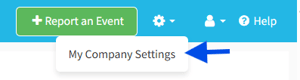
2. In Document Management Settings, toggle on Category Share Settings
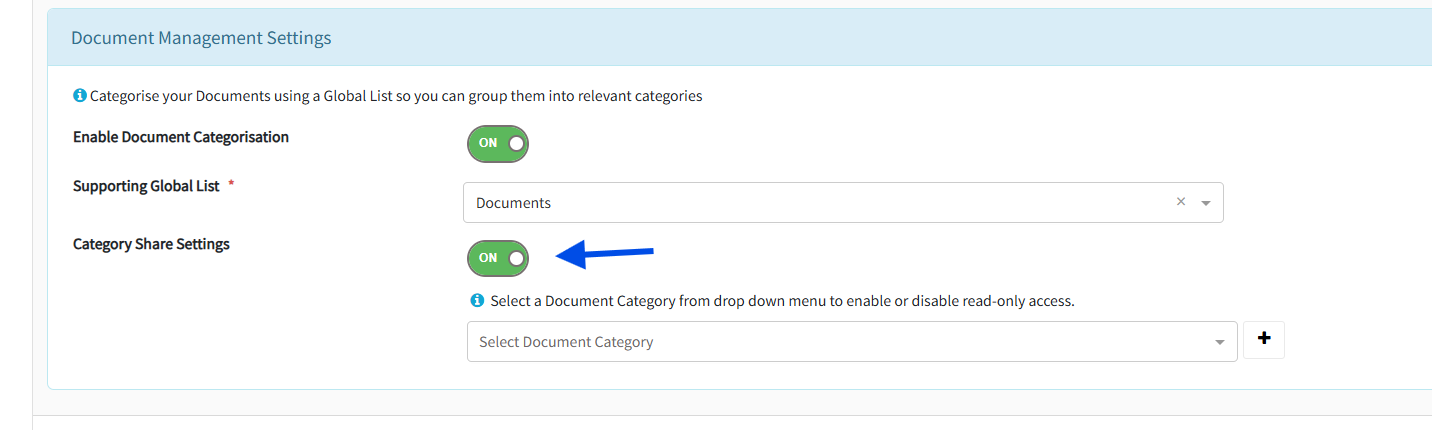
4. Once enabled you can select from the drop down which categories you would like to enable Read- Only access for
Toggle on Enable Read-Only Access beside each category, if you want to add more than one category simply click the plus sign next to the drop down menu.
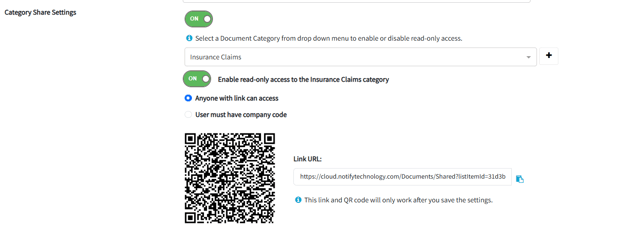
5. Choose the access level:
- Anyone with link can access– the document opens directly via the link
- User must have company code– users must enter a company code to view the document
6. Save your changes.
A unique shareable URL will now be generated for the document category and you will also be able to enable a URL or QR code within any document under the category that has Read-Only access enabled.
For help with sharing a specific document via URL based access, please see relevant guide:
How do I share documents using URL-based access?